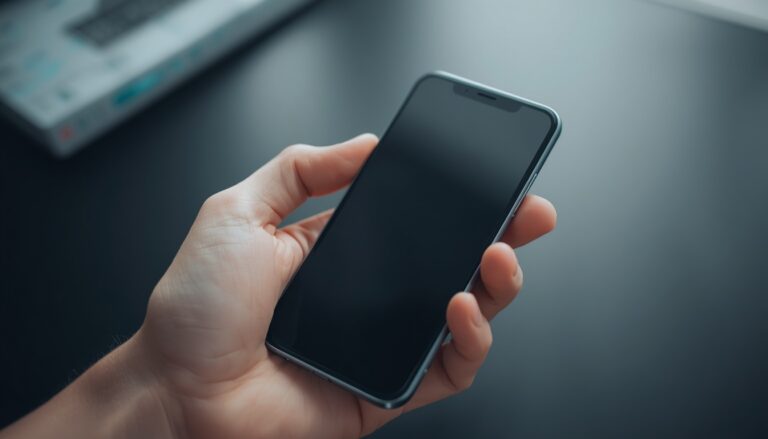
Hardware Longevity Manual: Deep-Cleaning and Physical Maintenance for Longevity
Hardware Longevity Manual: Your laptop fan started screaming after months of heavy use. Your phone battery now dies before midday.
You can stop that. We offer a step-by-step manual for deep-cleaning and physical maintenance that extends hardware life.
Prerequisites & What You Need Before Starting
Gather tools and prepare a clean, well-lit workspace. You will work slowly and safely.
Turn off devices and unplug all power before you touch the internals or ports.
- Microfiber cloths (lint-free)
- Compressed air can or electric air blower
- Isopropyl alcohol 70–90% (used for cleaning; flammable)
- Soft nylon brushes and anti-static brushes
- Small Phillips and Torx screwdrivers
- ESD wrist strap (prevents static discharge)
- Thermal paste and plastic spudger
- Contact cleaner and cotton swabs
- Replacement air filters and foam pads
- Small vacuum with brush attachment
Wear safety glasses and use an ESD strap when opening electronics. Work on a non-conductive mat.
Keep screws in labeled containers. Photograph layouts for reassembly.
Quick-Win: Collect these tools first and set a 30-minute window for each device session.
Executive Summary: Quick, Two-Line Overview
You will learn simple, repeatable steps to deep-clean and maintain common gadgets.
Follow these steps to reduce overheating, improve battery life, and prevent costly repairs.
This guide gives clear checklists, safe cleaning sequences, and timing recommendations you can use today.
We focus on practical moves and fast wins for everyday tech problems.
Quick-Win: Start with a 15-minute screen-and-port wipe to see immediate improvement.
Tools & Safety Basics
Why This Matters:
Clean tools and safe habits stop damage and shocks. They protect you and your hardware.
You reduce risk while completing reliable maintenance work.
- Discharge devices and unplug chargers. Remove batteries if possible.
- Use an ESD strap grounded to a non-powered metal surface. Secure screws in labeled trays.
- Work in good light, use magnification for small parts, and avoid liquids near PCB boards.
Pro-Tip: Label screws and take photos during disassembly. Small parts often return in the wrong place.
Laptops and Notebooks: Deep-Cleaning
Why This Matters:
Dust and debris raise temperatures and slow fans. Cooler internals extend lifespan and battery cycles.
You get quieter operation and more consistent performance.
- Remove the bottom panel following manufacturer guides. Unscrew gently and keep fasteners ordered.
- Blow dust from fans, heat pipes, and vents using short air bursts. Hold fans to stop spinning.
- Replace thermal paste if the laptop is older than three years. Clean CPU and heatsink surfaces before reapplying.
Note: If you feel resistance during disassembly, stop and check guides. For stuck clips, use a plastic spudger.
Choosing Cleaning Kits and Service Levels
Why This Matters:
The right kit saves time and prevents damage. Professional services help when internal work feels risky.
You pick the best value for time and device complexity.
- Compare kits: microfiber, brushes, alcohol wipes, vacuum adapters, and screwdrivers. Pick quality parts.
- Decide service level: DIY cleaning, professional internal cleaning, or full thermal rework. Match to device age.
- Use warranty checks. If a device is under warranty, verify service terms before opening it.
Pro-Tip: Keep receipts and photos if you choose paid service. They help claims and future tech support.
| Product / Service | Typical Cost | Best For | Included Tools | Turnaround |
|---|---|---|---|---|
| Basic Home Kit | $20–$35 | Screen and port cleaning | Microfiber, brush, wipes | Immediate |
| Pro Clean Service | $75–$150 | Internal dust removal | Disassembly, compressed air, vacuum | 2–5 days |
| Thermal Rework | $150–$300 | CPU/GPU thermal issues | Thermal paste, heatsink rework | 3–7 days |
Quick-Win: Start with a basic kit for all devices. Upgrade service for signs of overheating.
Smartphones and Wearables: Safe Cleaning
Why This Matters:
Tiny ports and seals can trap dirt and moisture. Proper cleaning keeps sensors and buttons accurate.
You protect water resistance and avoid corrosion that shortens device life.
- Power off and remove cases. Use a soft brush to loosen lint around buttons and ports.
- Wipe screens and backs with a microfiber dampened with a small amount of isopropyl alcohol.
- For ports, use wooden or nylon picks and compressed air. Avoid inserting metal objects.
Pro-Tip: Do not submerge non-waterproof devices. Check IP ratings before liquid exposure.
Desktops, Fans, and Thermal Maintenance
Why This Matters:
Dust reduces airflow through cases and heatsinks. Clean internals keep CPUs and GPUs cooler.
You preserve performance and reduce fan noise.
- Open the case and unplug all cables. Ground yourself to avoid static.
- Remove GPU and CPU fans if possible. Use compressed air and a soft brush to remove dust.
- Reapply thermal paste on CPU after cleaning if temperatures are high. Use a pea-sized amount and spread evenly.
Note: Test boot after partial reassembly before closing the case. That saves rework time.
Keyboards, Mice, and Peripherals
Why This Matters:
Sticky keys and intermittent mouse behavior cause frustration. Cleaning restores tactile feel and accuracy.
You prevent grime from spreading to ports and other devices.
- For mechanical keyboards, remove keycaps and brush out debris. Wipe switches with isopropyl alcohol on a swab.
- For membrane keyboards, flip and shake out debris, then surface-clean with damp microfiber.
- Clean mouse feet and optical sensors with alcohol and a cotton swab. Avoid scratching lenses.
Pro-Tip: Leave keycaps to dry fully before reassembly. Moisture can short internal contacts.
Displays and Optical Surfaces
Why This Matters:
Smudges and oils reduce visibility and increase eye strain. Gentle cleaning protects coatings.
You improve camera clarity and touch precision on all screens.
- Use a dry microfiber cloth for first pass. Wipe in one direction to lift oils.
- For stubborn marks, dampen cloth with distilled water or 70% isopropyl alcohol. Wipe gently.
- Avoid paper towels and household cleaners with ammonia. They strip anti-glare coatings.
Note: Test cleaners on a corner of the display before full application.
Ports, Connectors, and Storage Devices
Why This Matters:
Dirty ports cause poor connections and slow transfers. Clean contacts extend drive reliability.
You reduce failure rates and maintain stable charging and data transfer.
- Power off and remove drives when possible. Use blown air and a nylon brush for ports.
- Clean contacts with contact cleaner on a swab. Allow full drying time before reconnecting.
- For storage drives, inspect connectors and re-seat them firmly. Consider cloning before risky work.
Pro-Tip: Label drives and cables before removal. Misplaced cables can cause transient failures.
Implementation Roadmap
Why This Matters:
A clear checklist gets results fast. It prevents skipped steps and accidental damage.
You complete maintenance in predictable, safe stages.
- Quick check: back up data, power down, and remove power sources. Inventory tools.
- Surface clean: screens, cases, and ports with microfiber and alcohol wipes.
- Internal clean: open devices, blow dust, brush fans, and vacuum residue.
- Thermal check: monitor temps, reapply paste if needed, and replace filters.
- Final test: reassemble, boot, test all functions, and log the maintenance date.
Quick-Win: Set calendar reminders for quarterly surface clean and annual internal checks.
FAQ
Why This Matters:
Common questions trip people up. Clear answers save time and prevent damage.
We offer precise, modern scenarios for 2026 users.
Q1: How often should I deep-clean a laptop?
You should deep-clean a laptop every 6 to 12 months. High-use, dusty, or pet environments need six-month checks. Gaming and heavy workloads require closer attention. Monitor fan noise and thermal throttling as indicators. Clean sooner if temperatures rise or if performance drops.
Q2: Is compressed air safe for fans and PC internals?
Short bursts of compressed air are safe when you prevent fan overspin. Hold fans still with a plastic tool. Keep the can upright to avoid propellant spray. Use an electric blower for frequent cleaning. Work in short bursts to avoid moisture buildup.
Q3: Can I use household cleaners on screens?
Avoid household cleaners, especially those with ammonia. They can remove anti-glare and oleophobic coatings. Use distilled water or 70% isopropyl alcohol in small amounts. Microfiber cloths are best for gentle wiping. Always test on an inconspicuous corner first.
Q4: When should I replace thermal paste?
Replace thermal paste every 2–4 years for laptops and desktops under heavy load. Replace sooner if temperatures steadily rise or if you see dried or cracked paste. Use a quality paste and avoid over-applying. Proper application yields lower temps and quieter fans.
Q5: What precautions for cleaning USB-C and Lightning ports?
Power off devices and use compressed air to remove dust first. Use a wooden pick or plastic tool for stubborn lint. Apply contact cleaner sparingly to a swab if corrosion appears. Let ports dry fully before plugging in. Avoid metal probes to prevent pin damage.
Quick-Win: Keep a maintenance log with dates, actions, and observed temperature readings.
Conclusion: The Hardware Longevity Manual: Deep-Cleaning and Physical Maintenance for Longevity
You now have a practical plan to reduce heat and extend device life. Follow the checklists and safety steps.
Regular simple maintenance keeps gadgets reliable and saves money over time.
12-Month Outlook: Hardware trend — More laptops will ship with modular, user-replaceable air filters and easy-access panels.
12-Month Outlook: Software trend — System utilities will add built-in thermal monitoring alerts and guided maintenance prompts.
Meta description: The Hardware Longevity Manual: Deep-cleaning and physical maintenance tips to extend gadget life, reduce heat, and prevent failures.
SEO tags: hardware maintenance, device cleaning, laptop cleaning, smartphone care, thermal paste, deep-clean manual, gadget longevity
Start small and schedule the first session this weekend. We fix noise, heat, and connection problems together.
Keep this manual handy, and mark your maintenance dates for the year.